![arborgold-logo-@250px copy.png]](https://help.arborgold.com/hs-fs/hubfs/arborgold-logo-@250px%20copy.png?height=40&name=arborgold-logo-@250px%20copy.png)
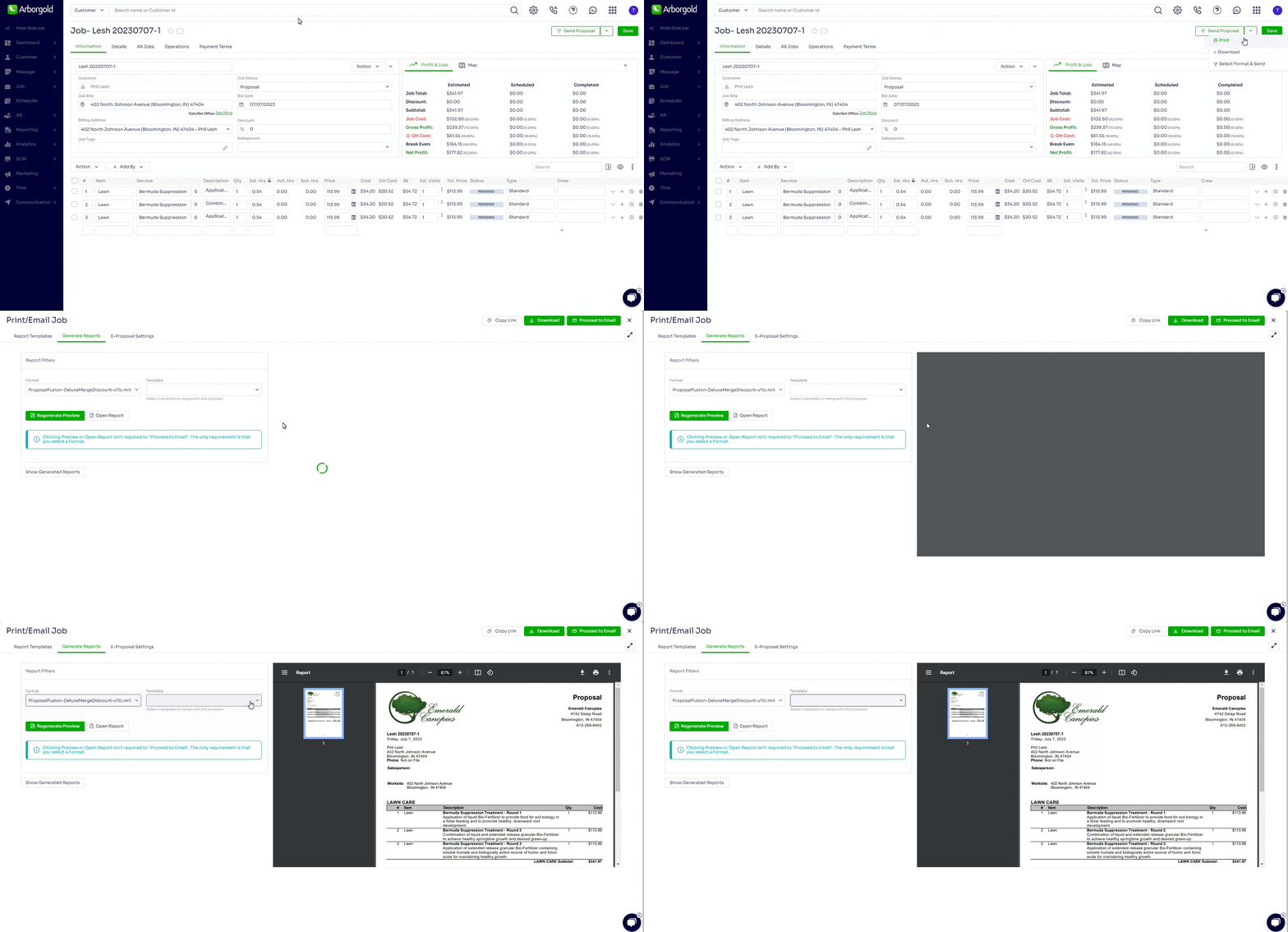
Printing a Single Proposal
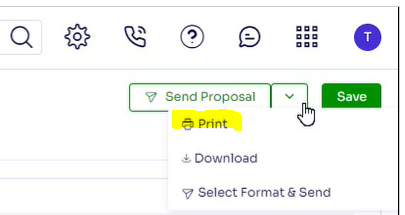
- Click Down Arrow on Send Proposal Button at top right corner and click Print
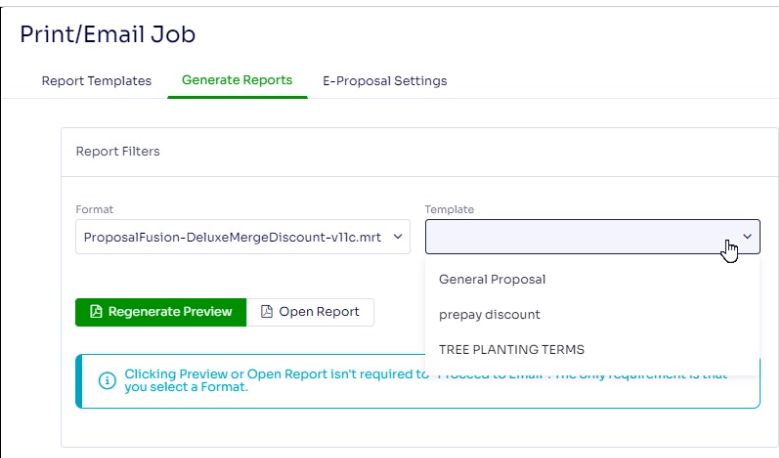
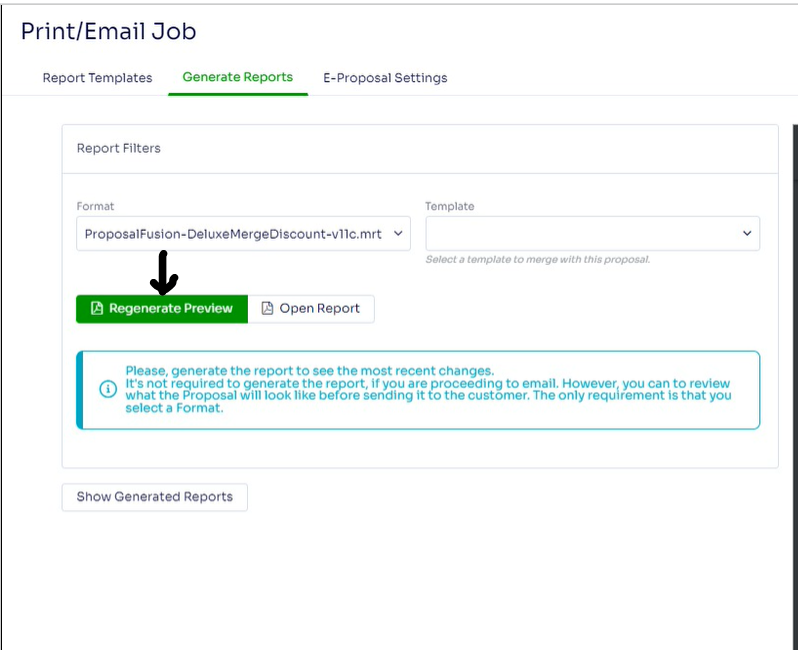
A new window will open
- Select the format to print
- Select Template for merge discounts [optional]
- Select Regenerate Preview (If changing from default user format first loaded)
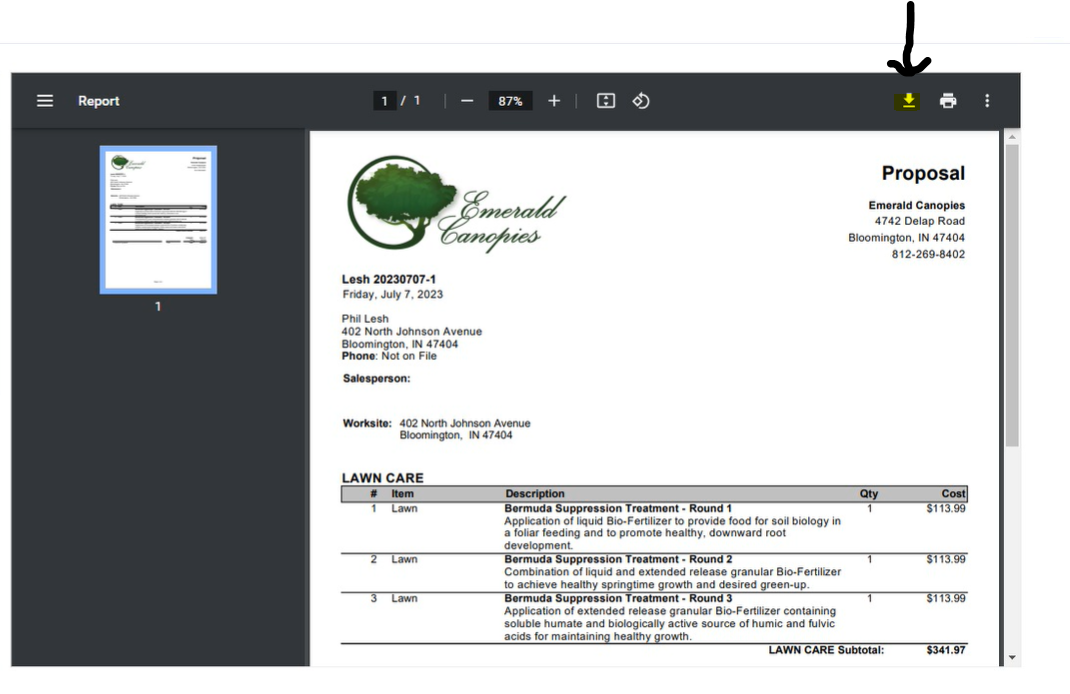
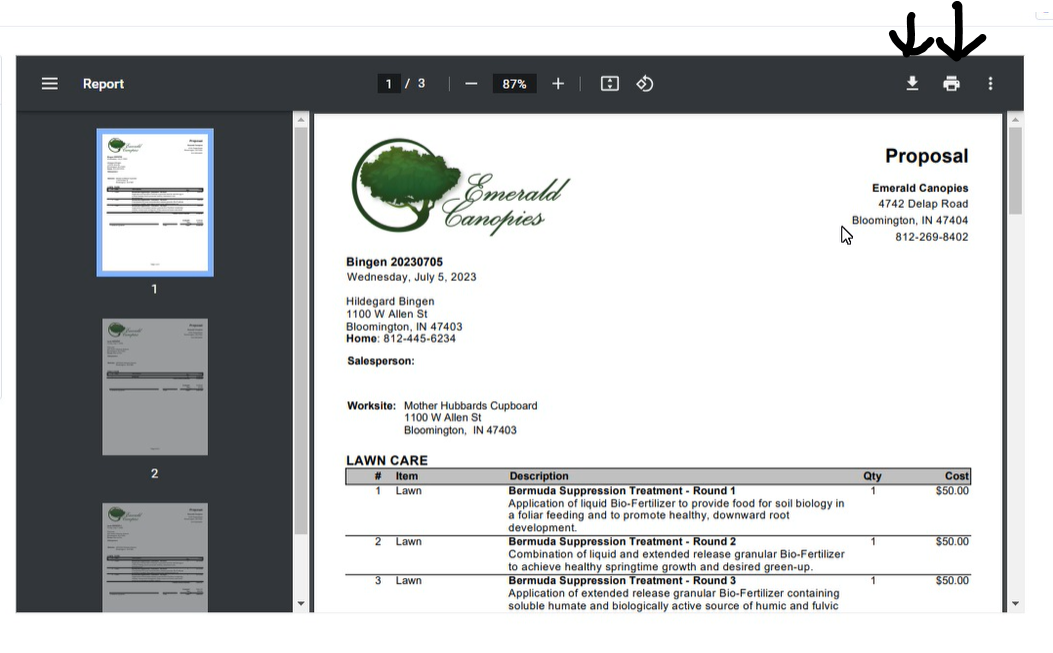
After the preview updates you can print and/or download the proposal
- Select the printer icon to print
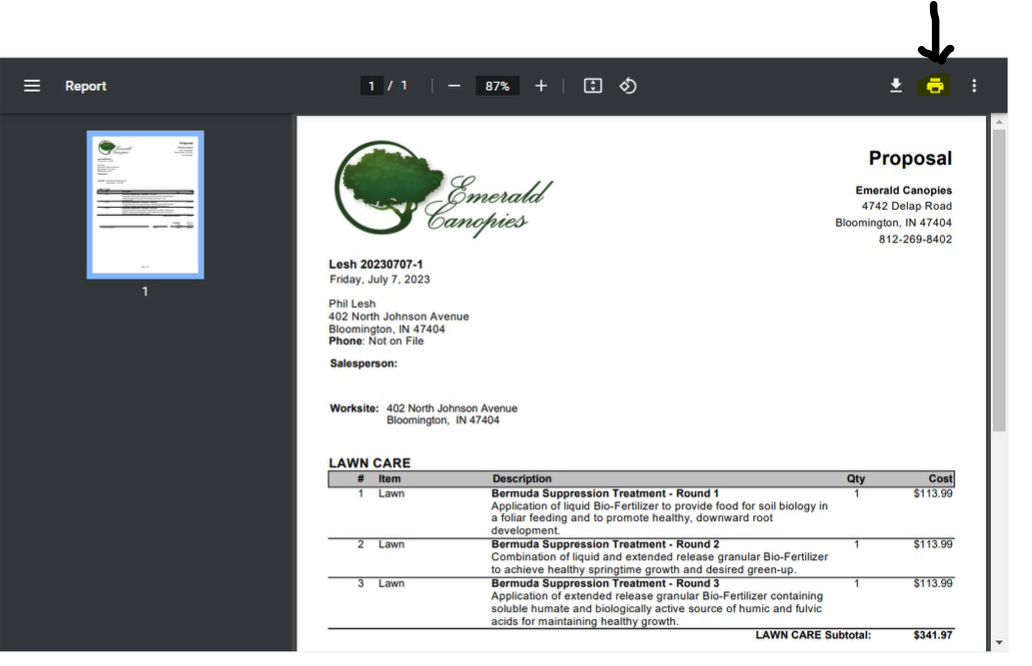
- Or you can download the proposal to your computer
Printing Jobs in Batch: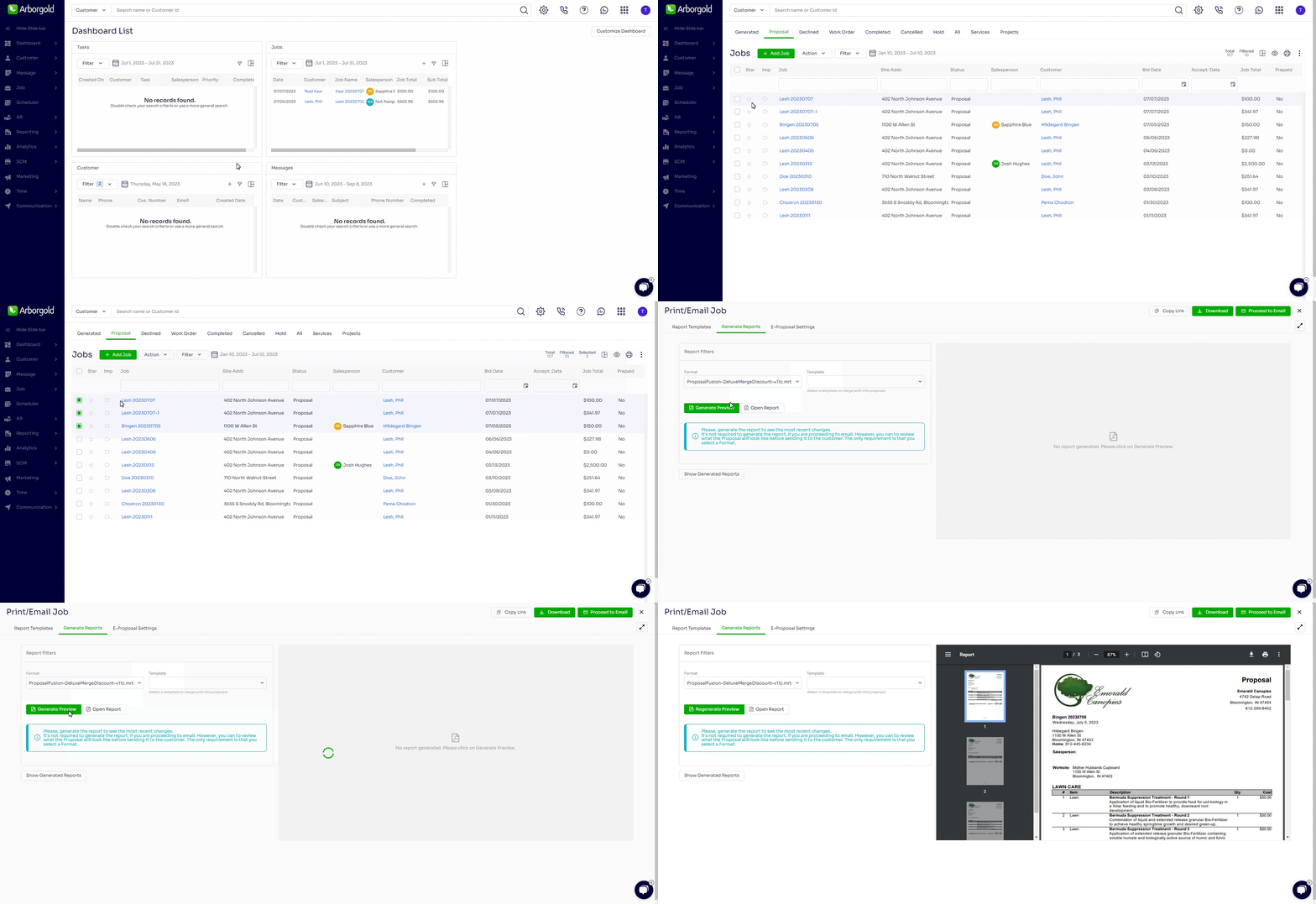
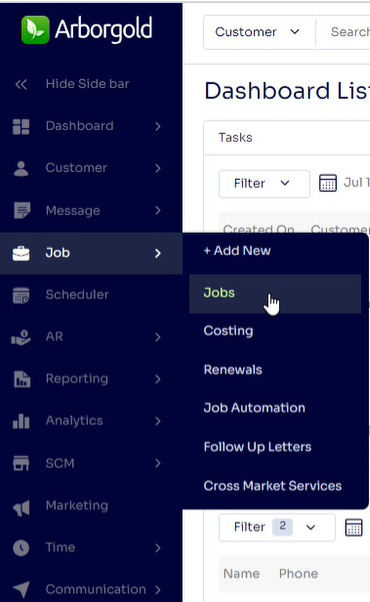
To Print in Batch, go to the Job > Jobs listing screen with the left menu.
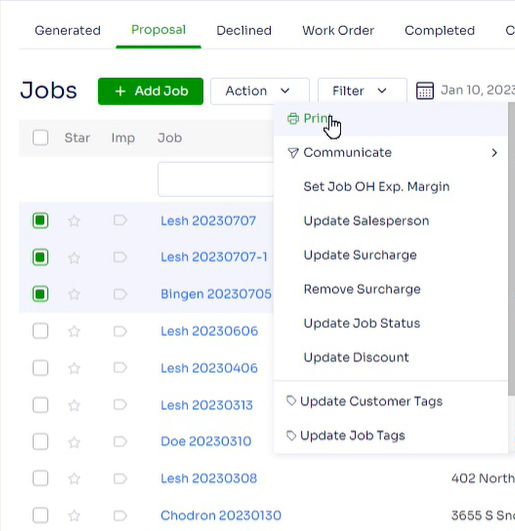
Select Job(s) to Print, select Action -> Print
Select Format, Template (optional), click Regenerate Preview
You can either click the Print button to print, or the Download Button to download.
Last Modified By Josh Hughey 7/10/23