![arborgold-logo-@250px copy.png]](https://help.arborgold.com/hs-fs/hubfs/arborgold-logo-@250px%20copy.png?height=40&name=arborgold-logo-@250px%20copy.png)
Introduction
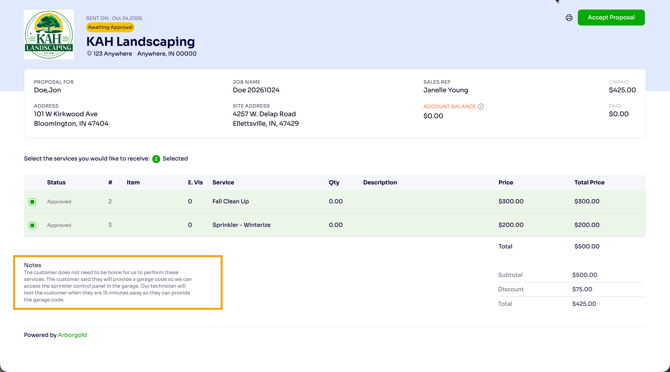
Do your customers call to ask questions you already answered in your Proposal Notes? By default, Proposal Notes appear at the bottom of the eProposal, below the services and totals, where they are easy to miss.
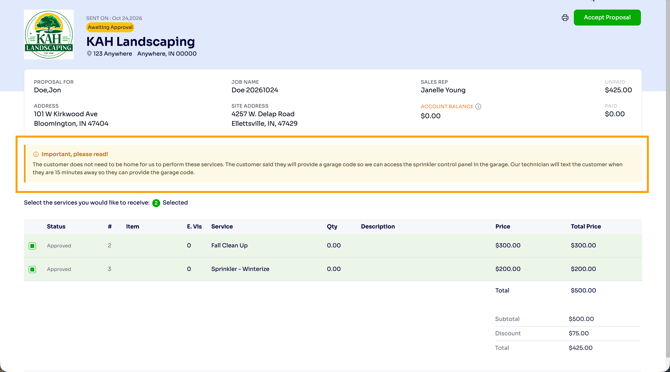
With the Show Proposal Notes at the top of the e-proposal setting, you can move your notes to the top of the page in a yellow highlighted box. You can also rename the header to something that gets attention, like “Important, please read!” This is especially helpful for proposals with many services, where the notes would otherwise sit far below the fold.
|
Note: This setting is off by default. Your eProposals will look the same until an admin user turns it on in Settings. Once it is on, it applies to all of your eProposals. |
How Proposal Notes Look by Default
With the setting off, Proposal Notes appear at the bottom of the eProposal, below the services and totals.
Before You Begin
- You need to be an admin user to change E-Proposal settings.
- The notes shown on the eProposal come from the Proposal Notes field on the job (Job Creator > Details). Only the position and header change with this setting. The content stays the same. To learn where to add notes, see Adding Notes to the Job and its Services.
Turning On Proposal Notes at the Top
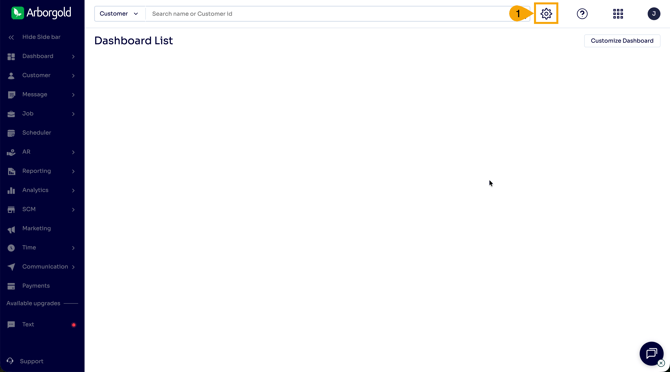
Step 1: Click the gear icon in the top right corner of Arborgold.
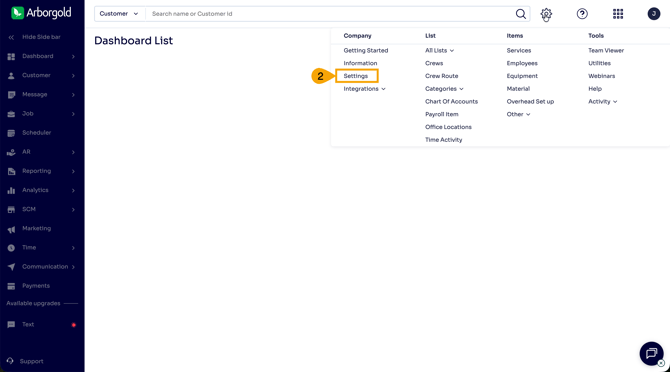
Step 2: Under the Company column, click Settings.
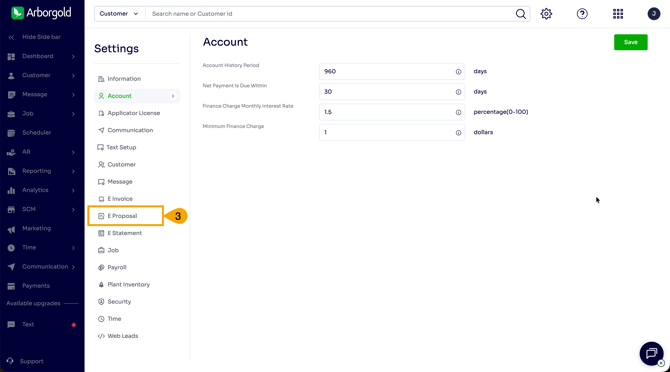
Step 3: In the Settings menu on the left, click E Proposal.
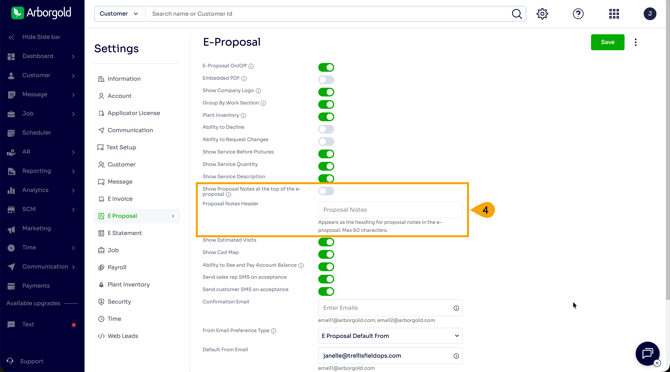
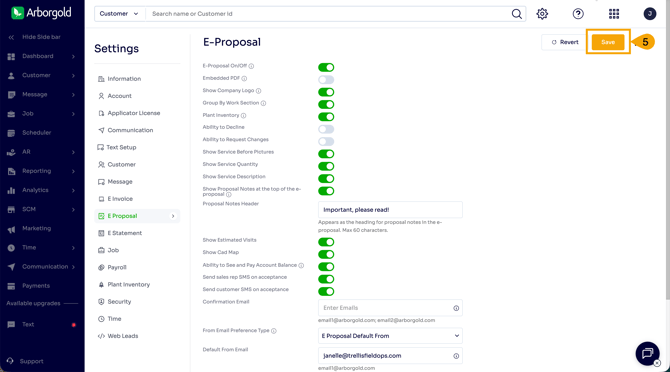
Step 4: Turn on the Show Proposal Notes at the top of the e-proposal toggle. Then, if you would like, enter your own text in the Proposal Notes Header field. This is the heading customers will see above your notes (for example, “Important, please read!” or “Client Notes”).
- The header can be up to 60 characters.
- If you leave the header blank, the heading will be Proposal Notes.
Step 5: Click Save.
Your change applies right away to all eProposals, including ones you have already sent. You do not need to resend anything.
What Your Customer Will See
When a customer opens the eProposal, the Proposal Notes appear in a yellow highlighted box near the top of the page, just below the customer and job details and above the list of services. Your custom header appears above the notes.
Frequently Asked Questions
1. Is this setting on by default?
No. The setting is off by default, so your eProposals will look the same until an admin user turns it on.
2. Do I have to resend proposals after I change the setting?
No. The change applies right away to both new and existing eProposal links. The next time a customer opens a proposal, they will see the updated layout.
3. Will my notes show up twice?
No. When the setting is on, your notes appear only at the top of the eProposal. They are removed from the bottom.
4. What if a proposal does not have any Proposal Notes?
Nothing extra will appear. The highlighted box only shows when the job has Proposal Notes.
5. Can I change the header without moving the notes to the top?
No. The Proposal Notes Header applies only when Show Proposal Notes at the top of the e-proposal is turned on.
6. Will formatting in my notes carry over?
Yes. Formatting such as bold text, links, and line breaks displays the same way at the top of the eProposal.