![arborgold-logo-@250px copy.png]](https://help.arborgold.com/hs-fs/hubfs/arborgold-logo-@250px%20copy.png?height=40&name=arborgold-logo-@250px%20copy.png)
Table of Contents
Overview: What Is Two-Way Texting?
The Arborgold Crew App now supports Two-way texting, allowing crew members to send and receive Text messages directly with customers. This feature was previously available only for cloud roles and is now integrated into the Crew mobile experience.
Crew members can:
-
Send and receive text messages with customers while in the field
-
View ongoing conversations related to their assigned jobs
-
Send custom messages, including photos
Office users can:
-
View the same conversation threads in real time
-
Maintain a complete communication history with each customer
This feature enables faster responses, clearer communication, and better coordination between the office and field teams.
On-My-Way Texting
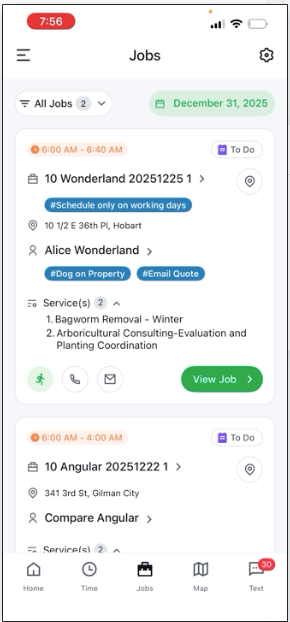
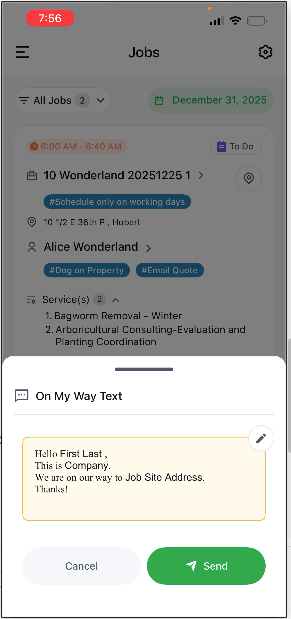
Crew members can quickly send predefined or custom “On-My-Way” style messages to customers.
-
Messages are sent as SMS.
-
A conversation thread is automatically created.
-
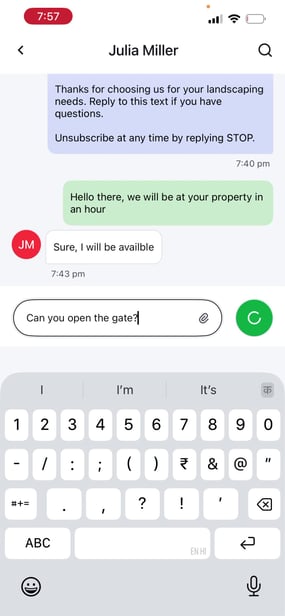
All replies from the customer appear in the same conversation.
-
Admins in the same database can also view the conversation.
This ensures visibility and continuity across your team.
Starting a New Conversation
To initiate a new text conversation:
-
Open the Text Conversations tab.
-
Select the option to start a new chat.
-
Search for and select a customer.
-
Confirm the customer has:
-
A phone number on file
-
SMS enabled
-
-
Begin typing your message and send.
Once sent, the conversation will remain available for future reference.
Accessing the Text Conversations Tab
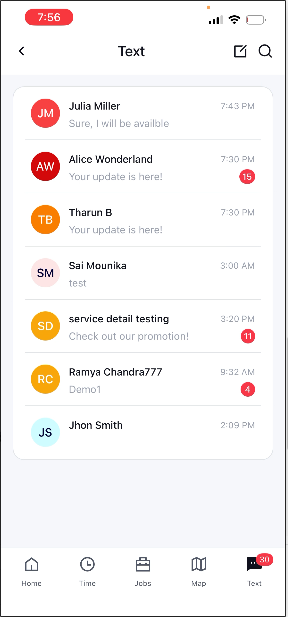
A dedicated Text Conversations tab is available in the bottom-right area of the app.
From this tab, you can:
-
View all existing conversations
-
Search by customer name
-
Search by text content
-
Quickly open and continue previous conversations
This makes it easy to manage multiple active conversations in one place.
Frequently Asked Questions & Important Clarifications
-
If a conversation already exists, does sending an On-My-Way message start a new thread?
- No.If a conversation already exists for the customer, the On-My-Way message is added to the existing thread.
- A new thread is created only if no prior conversation exists.
- This keeps all communication with a customer in one continuous conversation.
-
How do I add or remove technicians/chat members from a conversation if someone is unavailable?
-
Currently, chat members can only be added or removed from the Cloud Account. Click the ellipses (...) and Remove to delete an employee, or use +Add Employee to include new selected employees in the existing chat conversation.
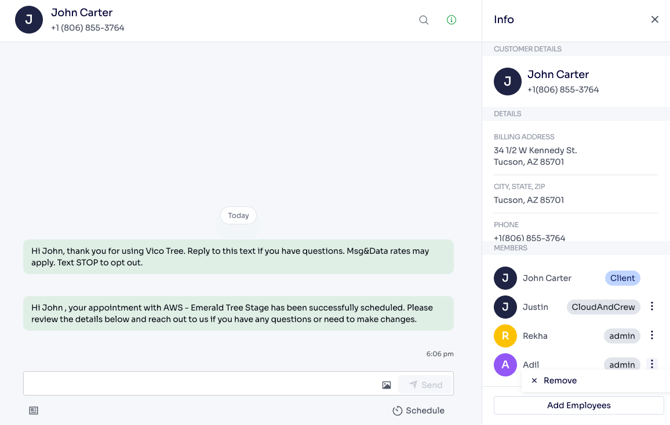
- When a new chat member is added to a conversation, they gain access to the conversation.
- When a chat member is removed from a chat conversation, they lose access to that conversation.
- Admins retain access at all times.
-
This ensures messaging stays secure and visible only to active crew members.
-
-
Should crew technicians be added before sending booking confirmations?
-
The Crew Role Users have default permission to initiate a new conversation via the "On My Way" Texting feature or Chat tab in the Crew app, automatically joining as a member. Other chat members can currently be added only from the Cloud Account.
-
-
How does a technician send photos? Is there a limit?
-
Crew Users can send photos directly within a text conversation by attaching image from their device.
-
Only 1 photo per text message.
-
Photos are visible to both the office and the customer.
-
Photos are stored with the conversation for future reference.
-
- A common workflow includes:
- Sending before photos to document site conditions.
- Sending after photos to confirm work completion.
-
-
How does a technician know the office has sent a message while in the field?
-
Crew user can navigate to Chats Tab and find existing chat conversation by searching customer name.
-
-
How does a crew member get permission to text customers?
-
Two-way texting is company-based permission at this moment.
-
Two-way texting is enabled for your company.
-
The customer record contains a valid, SMS-enabled phone number.
-
-
-
Can texting be disabled for specific crew members?
-
Two-way texting is currently a company-wide permission and cannot be disabled per individual user account.
-
You can remove a Crew User from an existing conversation using the Remove Employee option under the Cloud user account. However, this won't prevent them from starting new conversations with the same or different customers via the Crew app.
-
Feedback and Next Steps
We encourage all users to try the new Two-way texting feature in Arborgold Crew 2.3.0. Your feedback helps improve communication workflows and future enhancements.
If you have questions, issues, or suggestions, please contact support or share feedback with your Arborgold representative.